How to convert mbox to Outlook PST
By Aksel VisbyPublished Updated Tested with ContinuMail Converter v0.3.2
This guide covers generic mbox archives. A complete Thunderbird profile contains extra metadata outside the mbox files, while Gmail Takeout adds its own label headers. Use the dedicated guides linked below when either source applies.
What is an mbox file, and why can’t Outlook open it?
An mbox file stores many email messages sequentially in one mailbox file. Thunderbird, Gmail Takeout, and numerous Unix mail tools use variants of this format. Some mailbox files have an .mbox extension; Thunderbird mailboxes often have no extension at all.
Outlook uses PST rather than mbox for portable local data. Renaming the file does not translate message boundaries, folders, attachments, dates, flags, or Outlook’s internal property structures. A converter must parse each source message and write the corresponding PST objects.
What should you check before converting?
A safe migration starts with an untouched source copy and a known validation target. Do not make the new PST your only copy of the archive.
- • Copy the original mbox files or source export to a backup location.
- • Confirm whether the source is generic mbox, Gmail Takeout, or a live Thunderbird profile.
- • Make sure the output disk has room for the source, generated PST files, and temporary working data.
- • Decide whether the original folder hierarchy should be mirrored or flattened.
- • Plan to compare the conversion report with the source and inspect representative messages afterwards.
How do you convert mbox to PST step by step?
1. Download and install ContinuMail Converter
Download the free Windows 10/11 desktop installer. Conversion is local, needs no account, and does not require Outlook to be installed.
2. Select the mbox files
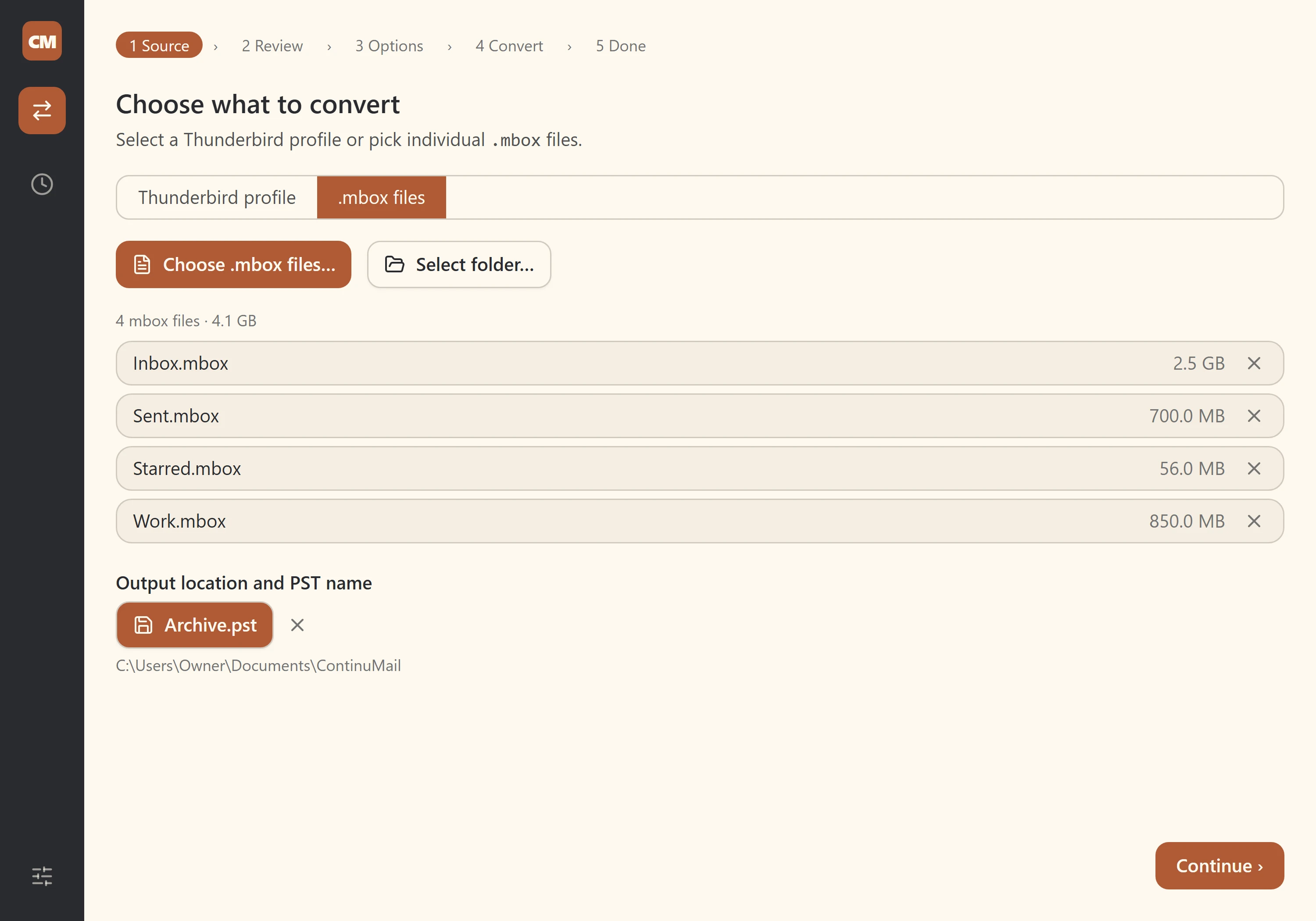
Choose one or more mbox files, or select a folder containing related mailbox files. ContinuMail reads the source files but never edits them.
3. Scan and review the input
Run the scan to count messages, identify folders, surface malformed records, and estimate the amount of PST data before conversion starts.
4. Choose folder mapping and PST splitting
Mirror the source hierarchy or flatten it, preview the output tree, and set a maximum PST size when a large archive should be split into several files.
5. Convert the archive
Choose an output location and start the conversion. Keep the source archive and enough free disk space for both the input and generated PST files.
6. Open and validate the PST
Open the generated PST in Outlook, compare folder and message counts with the conversion report, and inspect representative messages and attachments before relying on the result.
Free · no sign-up · Windows 10/11 desktop app · cross-platform CLI
What does a generic mbox conversion preserve?
ContinuMail preserves the message data that is actually present in the archive. That includes message bodies, HTML, attachments, inline images, sender and recipient fields, dates, threading identifiers, and the selected folder structure.
Application-specific state can only be recovered when the source carries it. Read or unread state may be available in status headers; Gmail exports include useful label headers. Thunderbird tags, junk state, and authoritative IMAP flags may instead live in the Thunderbird profile’s index files. For those, convert the complete profile rather than exporting bare mbox files.
The field-by-field fidelity page separates generic mbox, Gmail Takeout, and full Thunderbird-profile behavior.
How should you handle a large mbox archive?
Scan first and split deliberately instead of creating one unnecessarily large PST. ContinuMail estimates output size and previews the folder tree before writing. A split limit produces multiple PST files while keeping messages grouped into usable folders.
Write to a local disk when possible, avoid editing or compacting the source during conversion, and leave enough free space for the complete output. If the source consists of several related mailbox files, select the containing folder so the hierarchy can be reviewed together.
How do you open the PST in Outlook?
Classic Outlook provides the most complete PST validation path. Choose File → Open & Export → Open Outlook Data File, select the generated PST, and expand it in the folder pane.
New Outlook can open PST files under Microsoft’s current requirements, but its support remains partial. It currently requires a matching classic Outlook installation and Microsoft 365 subscription, and calendar and contact data stored in PST is not fully available. Check the current Microsoft PST support requirements before relying on new Outlook for validation.
How do you verify the converted PST?
A completed conversion is not the same as a verified migration. Keep the source until the result has been checked.
- • Compare total and per-folder message counts with the conversion report.
- • Open old, recent, plain-text, and HTML messages from several folders.
- • Open ordinary attachments, inline images, and attached email messages.
- • Check dates, sender and recipient fields, non-ASCII text, and long folder names.
- • Search for several known messages and review any warnings in the report.
- • Retain the original archive and report until the PST has been used successfully.
What if the scan or conversion reports warnings?
Warnings identify records that deserve inspection; they should not be hidden behind a success message. A damaged or non-standard source message may be recoverable only in part, while disk-space and permission failures require correcting the output environment.
Save the human-readable and JSON conversion reports, preserve the source file, and reproduce the issue with the smallest non-sensitive sample you can. Report repeatable failures through the public issue tracker without attaching private mail.
Frequently asked questions
- Can Outlook open an mbox file directly?
- No. Outlook does not provide an mbox open or import command. The mail must first be converted to a format Outlook understands, normally an Outlook Data File with the .pst extension.
- Can I convert mbox to PST without Outlook installed?
- Yes. ContinuMail writes the PST directly and does not automate Outlook. Outlook, or another PST reader, is only needed after conversion to inspect the result.
- Is the mbox file uploaded anywhere?
- No. ContinuMail performs conversion on the computer where it is installed and makes no network connection during conversion. The original archive is opened read-only and is not modified.
- Will read and unread status be preserved?
- It is preserved when the mbox contains usable status headers, including Gmail Takeout label headers and common mbox status fields. A bare mbox cannot supply metadata that was stored only in an application-specific database.
- What happens to a very large mbox archive?
- ContinuMail scans before writing and can split output by size. Use the preview to choose a practical split limit, write to a disk with ample free space, and validate every generated PST.
- Does the generated PST work with new Outlook for Windows?
- New Outlook can open PST files under Microsoft’s current requirements, but support remains more limited than classic Outlook and calendar or contact items in a PST may not be available. Classic Outlook remains the clearest option for full validation.
Convert a copy, then verify it
ContinuMail is free, open-source, and local. Keep your source archive, review the generated report, and validate the PST before relying on it.